Last month Olivia, Youbee Media’s Digital Marketing Apprentice delivered a presentation to the team showcasing the many tips and tricks on the design tool, Canva. Developed in 2012, Canva has fast become known as a fantastic design tool for individuals and businesses with different experience levels and skillsets. Anyone from a novice to a pro can create social media graphics, business cards, presentations, and infographics in just a few clicks with Canva.
As Canva is always developing and looking at new ways to help people ‘get creative’, the purpose of this presentation was to share some of the latest developments with the team. These shortcuts and developments can be crucial time savers when time is the enemy! As a digital marketing agency, we’re often asked to turn tasks around quickly for our clients, or we may need to react to a change within a client’s business.
Our marketing consultancy uses Canva frequently, and we’re also lucky to have Head of Creative, Dena as a whizz on the full Adobe suite. Youbee Olivia confidently uses a blend of both as part of her role and for her apprenticeship. As Olivia’s role involves supporting Dena in intricate design projects for large clients, as well as creating social media graphics our retainer clients – Olivia is in a great position to translate the benefits of Canva to the team.
Olivia would now like to share some of these tips and tricks with you, to see what you can create on Canva! If you need any help with your designs, get in touch with our team, or join one of our marketing workshops for more social media management tips.
So, what can you create with Canva?
As design software, Canva offers thousands of templates for all design needs. It’s a great tool to find inspiration for design projects, as there are thousands of templates to browse through. Canva is a great tool for brainstorming or harvesting ideas with elements and images. The templates also allow you to create different mock ups and designs quickly, while personalising your images.
To throw a few ideas out there, here’s a mind map (made in Canva) displaying some of the most popular designs you can make in the app.

Canva Shortcuts
Many people don’t realise this, but Canva is jam packed with shortcuts! This is great for those that are beginning to feel more confident on the platform, and for businesses who need to create content fast. The Canva shortcuts allow you to add text, shapes, and lines with just one click.
A great way to find anything you want quickly, is to click the ‘/’ on the keyboard, and a quick search box will pop up on your screen. This is one of our favourites as we’re often switching between different projects and brand kits.

Similarly, tap the letter ‘L’ on your keyboard for a Line, ‘R’ for a Rectangle, ‘C’ for a circle and ‘T’ for text to appear. This could possibly become your favourite shortcut as it’s so easy to remember.
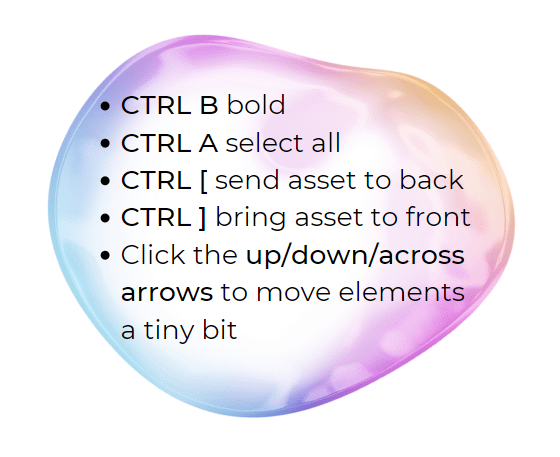
As Canva is consciously user-friendly and looking for the most efficient ways to appeal to many people, the desktop tool also supports keyboard shortcuts that are common for most keyboards.
Here’s a list of the most valuable shortcuts for time saving when creating content:

Batch creating Canva content
Just over a year ago, Canva developed another fantastic tool to allow businesses and users to create different social media graphics quickly. This tool is called Quick Create.
Quick Create allows you to simultaneously create consistent content for several platforms much quicker than performing the task manually. Although Canva has a ‘resize’ and a ‘copy and resize’ function, this option means you may still need to manually change the layout of your design to alter an Instagram post for Twitter, for example.
To use Quick Create, go to the home page and where you see ‘What will you design today?’ click ‘social media’. Under this section, you’ll see ‘Quick Create Collection’ appear from the suggestions of social media templates and designs. From here, you can ‘get started’ and select the sizes of design you want to create. You will see a number of templates suggested, and you can choose the one that most represents what you want to share. Customise the template with logos, images, branding and your text – and this is a brilliant way to create content quickly. Canva will add all of your designs to one folder, so that you have all of your content in one place.
Olivia created a video to illustrate this process, and you can find it here –
Canva’s most notable features
When it comes to saving time whilst creating content, you are never short for quick tips with Canva. At Youbee Media, we have many favourites! But we managed to get this down to our top 3, which you can find below:
- Expertly remove a background from an image in seconds with Canva’s background remover tool. This same technique would take much longer on Adobe’s design suite.
- The ability to organise company logos, fonts and colours in Canva’s brand kit builder. This is a great agency tool that allows us to manage our client folders with ease.
- Canva’s ‘explore’ feature which quickly generates tips, ideas and information about all things Canva. Using explore, we can make sure we’re always on top of what’s new and creating fantastic designs!
Olivia also created a short video showing how to use Canva's background tool. Watch the video below
Do you want to learn more about Canva? Youbee Media offer bespoke 1-2-1 training sessions which can help to quickly get you up to speed on custom creating your own designs. Email hello@youbeemedia.co.uk or give our team a call to find out more.