Are you overwhelmed by Google popups and emails telling you to migrate to GA4 - but you don’t fully understand what this means? Then read on, as our friends over at Discovery Agency have put together some helpful guidelines and insights!
If you simply don’t want to attempt this yourselves, the team at Discovery are happy to help and ensure you don’t lose any tracking data come 1st July 2023.
GA-4: you need to pay attention!
Google mightn’t be trailblazers in the field of analytics, but they understood the impact that performance metrics would have on online business and digital daily life. In April 2005, they took ownership of analytics software firm Urchin, now better known as Google Analytics. For the following decade and a half, Google has ensured that its analytical development matched the growth and sophistication of digital marketing and ecommerce.
Now, the latest iteration of Google Analytics, GA-4, is here. In fact, it’s been around for almost a year! You mightn’t have been aware of the change, but this is a significant development. It's vital that you understand what GA-4 can imply for you and your business.
Let's start at the beginning
If you're on Google's Analytics mailing list, you might have already received the news that Universal Analytics (UA) will cease processing data from July 2023. But what will happen in the run up to this, and how could these changes potentially affect your business?
Google sent out an email back in February, stating that they'll soon commence configuring Google Analytics 4.

So, starting in March, any client who hasn't actively transitioned to GA4 will have a G4 property automatically created for them by Google. This will use rudimentary settings in line with the client’s existing Universal Analytics property, taking into consideration many of their settings (like their goals, audiences, Ads links, users, and so on). This will also include specific conversion events, Google Ads links, and current gtag or analytics.js tags.
If you're not keen on Google automatically generating GA4 properties for you, there's an option to opt-out via the instructions provided in this link.
When Google says you "haven't transitioned", it covers several potential scenarios…
Scenario 1: You own a UA (Universal Analytics) property and haven't established a GA4 property. The UA property hasn't been opted out of the automatic transition setting.
This will be a typical scenario for those who haven't had the time or don't wish to establish GA4 themselves. This represents the "long tail" of customers Google wishes to retain on GA.
If you simply lacked the time or inclination to perform the transition, perhaps an automated transition isn't a terrible alternative for you. But be prepared to lose some insights (more information on how the transition works is provided below.)
Scenario 2: You've created a GA4 property but haven't linked it to a UA property. Google isn't aware it's the same as your UA property and doesn't view this as a transition.
Have you noticed this popup modal in GA4? Probably, as it appears every time you log in or refresh.

What's the purpose of linking? It informs Google that you've created a GA4 property connected to a UA property.
Will this prevent Google from auto-transitioning you? Not necessarily.
That will hinge on how much of the GA4 setup assistant you've completed (more on that shortly).
Scenario 3: You've established a GA4 property and linked it to a UA property but haven't finished all GA4 Setup Assistant steps.
If you haven't opted out of the transition in UA, Google will begin filling in the blanks for you in this scenario.
Utilising the GA4 Setup Assistant
The GA4 Setup Assistant is a 12-step tool that assists you in tracking your GA4 transition progress. It encompasses some rather handy tools, such as assistance with audience transition and a more simplified process for Google Ads linking.

To take advantage of Google Ads linking assistance, you’d need dual admin access: you’ll need to be an admin on both the Analytics and Ads accounts to link. It can be frustrating and time-consuming to confirm you have the correct access levels.
The setup assistant tool refers to the links you have in UA and does not necessitate admin access to Ads to link. This is beneficial if someone not typically involved in Ads is helping you transition, like a contractor or agency.

When you click ‘Import from Universal Analytics’, a new screen displays all of the Ads links you have set up in UA. You can select or deselect the boxes for what you wish to import to GA4 and then hit Import selected Ads links - it's as simple as that.

Conversions
This tool will reference your conversions in UA and check if they are eligible (i.e., event or destination goals) for transition to GA4. Goals using other goal types or regex are not currently eligible for transition, though this may possibly change in the future.
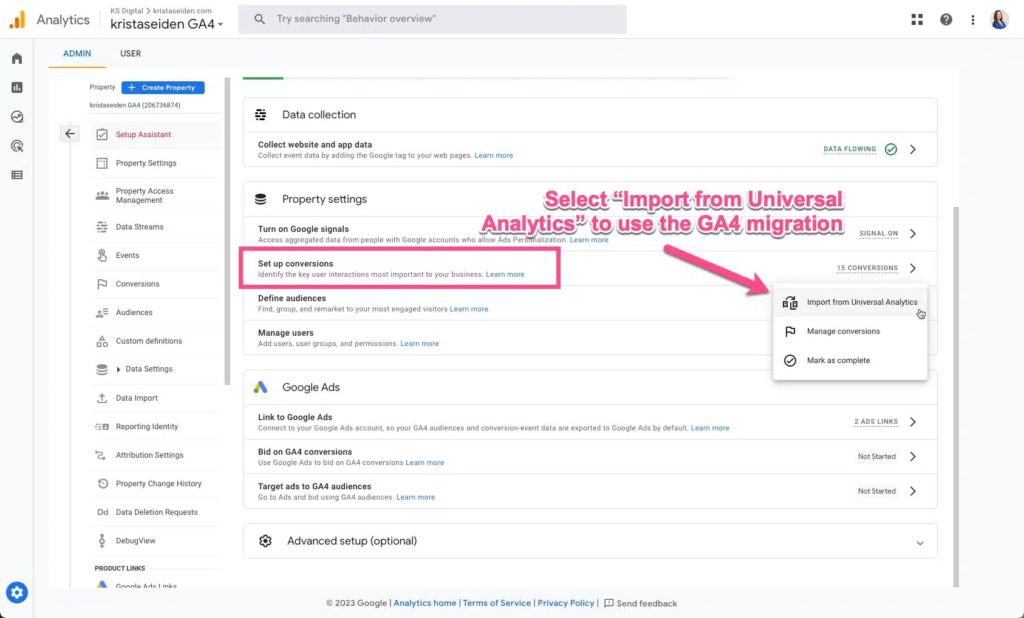
The Conversions transition screen is akin to the Ads linking screen. Select the eligible goals you wish to transition to GA4 conversions (any ineligible goals will be dimmed).
You have the option to change the name of the conversion, but I recommend maintaining it in the underscore format.

Users
This feature isn't as glamorous, but if you have numerous users with access to your UA property that you wish to copy to GA4, it might be the most useful tool.
When you select ‘Import from Universal Analytics’, it will direct you to a Help Centre article detailing the process. You will need to use a Google Sheets Add-on tool for this. It sounds like a chore, but it's quite fast and painless. The Help Centre article provides excellent step-by-step instructions on how to utilise it.
Why some users might wish to opt out
Let's say you fall under Scenario 3 (so, you've created a GA4 property and linked it to a UA property but haven't finished all GA4 Setup Assistant steps). This means that anything you haven't marked as complete in the GA4 Setup Assistant tool will be done for you. From my perspective, this is where things can get dicey rather swiftly.
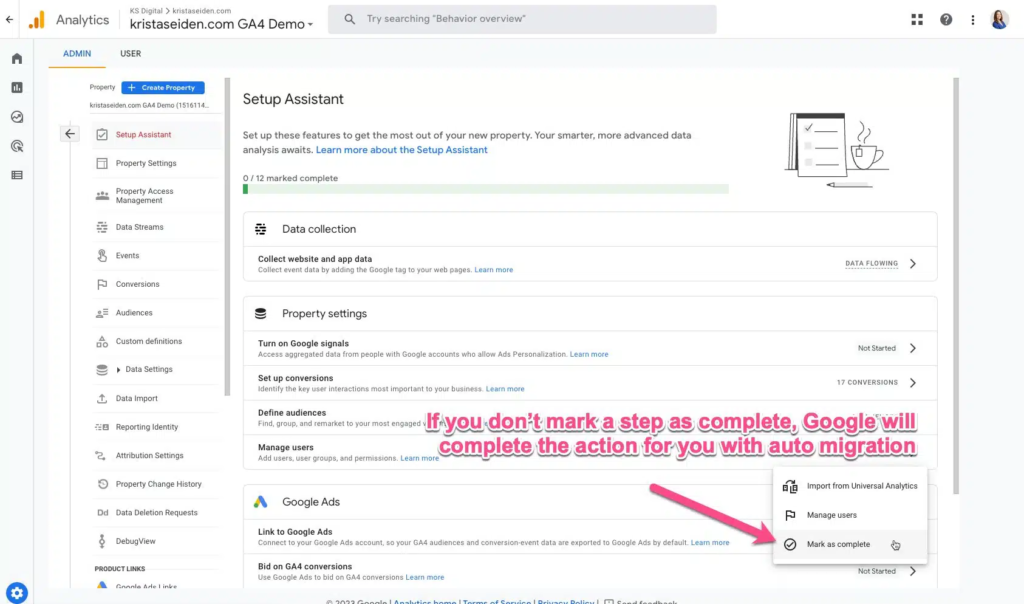
Yes, I just praised the Setup Assistant for its useful tools. However, they're useful because you can control the transition yourself.
For all 12 steps in the Setup Assistant, you need to mark them Complete even if you haven't actually completed them – unless you want Google to do it!
This can be particularly critical for these seven steps:
• Activating Google Signals
• Setting up Conversions
• Defining Audiences
• Managing Users
• Linking to Google Ads
• Bidding to GA4 conversions
• Targeting ads to GA4 audiences
Let's unpack a few of these, and see what implications Google’s unsupervised intervention could have…
Linking to Google Signals: Google Signals is required for remarketing/retargeting with Google products. But certain countries may have legal implications or restrictions, so I'd advise checking with your legal team to be sure.
Managing Users: As I just mentioned, I'm a fan of this feature. However, with great power comes great responsibility. You should scrutinise the access being granted, as there may be users you don't want to transition. If you allow Google to do it, they'll transition everyone from UA.
Bidding to GA4 conversions:This is where the real risk begins. If you permit Google to transition your conversions for you and you haven't reviewed them, you're taking their word that you are still considering the actions from UA that they could transition to be important. Then, if you let Google bid to those conversions in Ads, they are changing the goals from UA to GA4 conversions that you are spending actual money against. If you didn't set up those conversions, you risk an automated process spending your money in a way you might not want or that is not optimised toward your current goals.
Targeting Ads to GA4 Conversions: Same concerns as above. You would have Google transition audiences for you, hoping they're good enough, and then bid toward them with your money. Your oversight is taken out of the process.
Convinced? Here's how to opt out
So, have we convinced you to opt out of auto-migration? Here’s how to go about it.
In your Universal Analytics account, go to Admin > Property column > GA4 Setup Assistant.
Scroll to the bottom and toggle off the switch for "Automatically set up a basic GA4 property."

Opting out will prevent the UA property from being transitioned.
If you don't opt out but are linked (that popup modal we keep seeing), then you will need to mark all 12 steps (or whatever you don't want auto-migrated) as Complete in the Setup Assistant in your GA4 property.
If you do not opt out or do not mark all as complete, Google might transition some or all your UA property to a GA4 property very soon, if they haven’t done so already.
Still a bit confused?
Discovery Agency have helped companies all over the UK to migrate their data to new GA4 profiles, and we’d be happy to help you too. But time is running out, so get in touch ASAP if you feel you need some assistance.
Need support with social media management? Youbee Media can help, and Becky’s marketing workshops offer hands-on consultancy advice to go further.